
Writing
AI Humanizer for Mac:
How to Make AI Writing Sound More Natural
Learn why AI drafts sound robotic and how to refine them for clearer, more natural writing with a practical editing workflow.

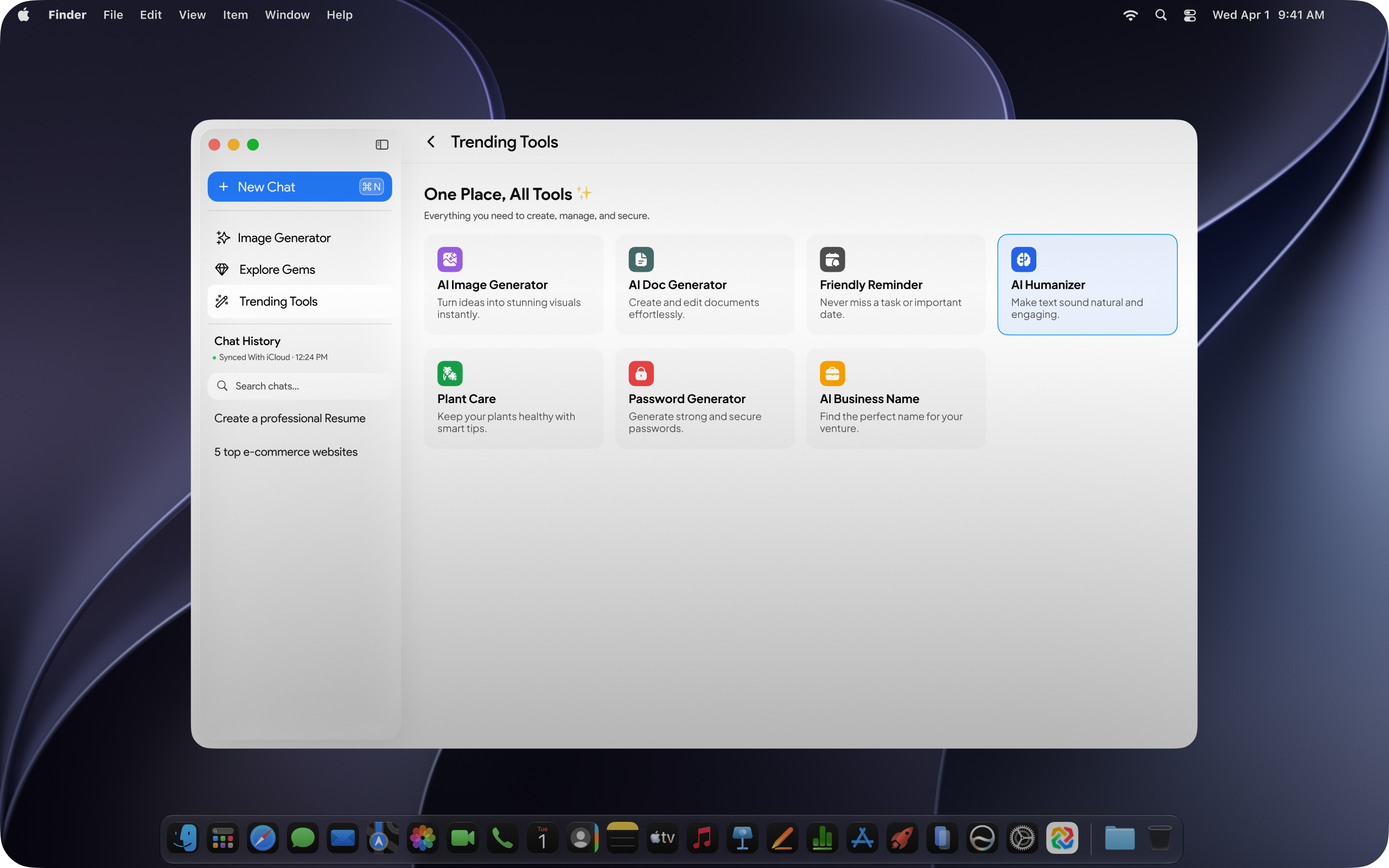
If you’ve used AI to write assignments, blogs, or draft emails, then you’re not alone. However, you might’ve used tons of spinning tools to make the produced text non-AI. What if we tell you that you can get only one tool that can generate text and humanize it to sound more natural?
Yes, there are AI humanizer tools that you can download and use for such needs. These tools offer a non-robotic tone, making your texts, drafts, and emails sound more natural. This guide highlights how these tools work while sharing tips on choosing one. So, let’s check that out now:
What Is an AI Humanizer?
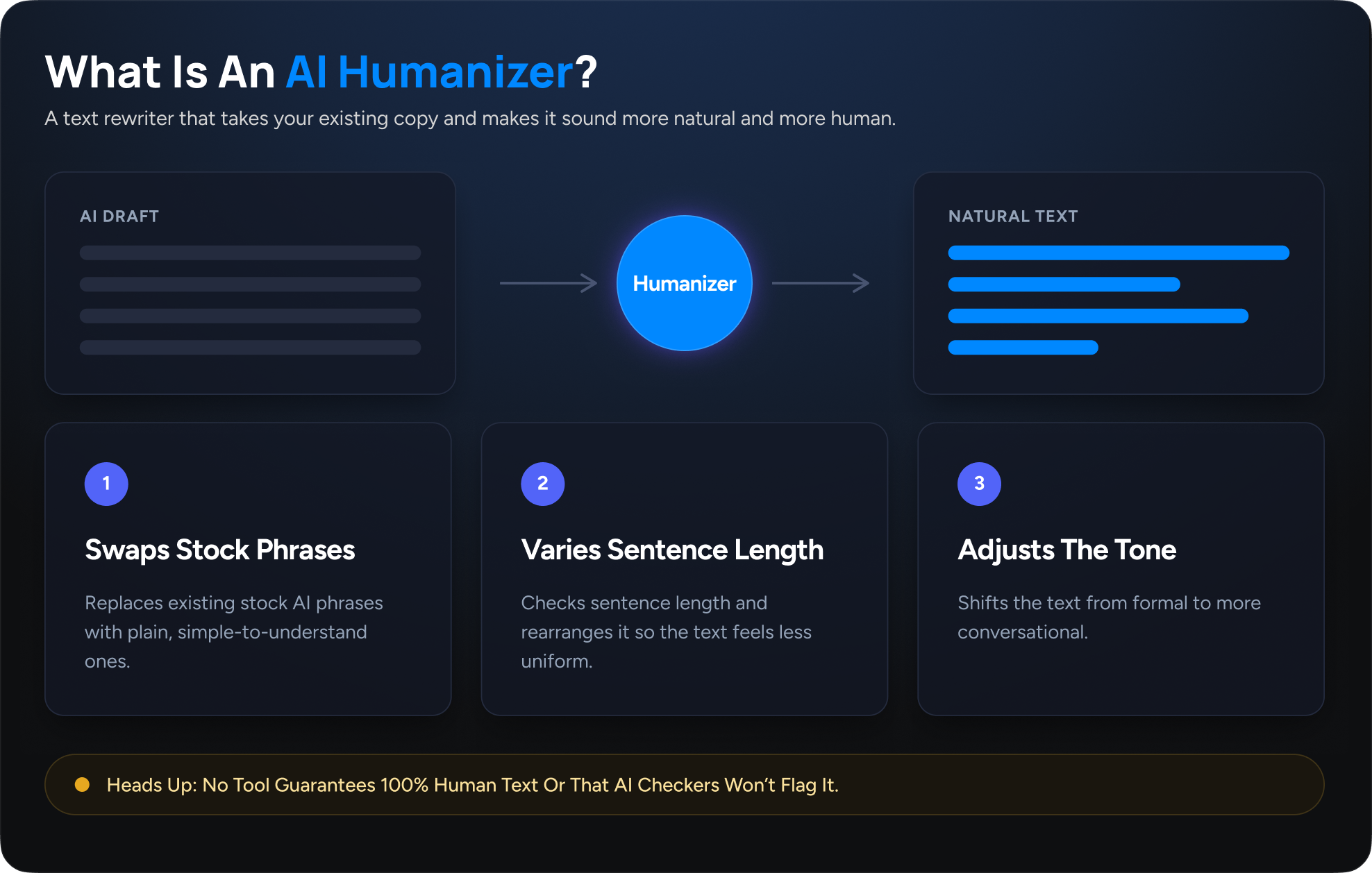
Just for the recap, an AI text humanizer is a tool that ‘humanizes’ a text. It’s a text rewriter that uses the existing copy and runs functions to make it sound natural and more human. Here’s how it works:
- It replaces existing stock AI phrases with plain, simple-to-understand ones.
- It checks for sentence length and rearranges them to make it sound less uniform.
- It adjusts the tone of the text, shifting it to more conversational instead of formal.
However, one thing to note here is that even this text can be detected as AI-written. No tool guarantees that the reproduced text will be 100% human and remain undetected by AI checking tools.
If you’re using an AI humanizer on Mac, you can download a dedicated app that can help detect AI within the text and then humanize it later.
Why AI Drafts Can Sound Robotic?
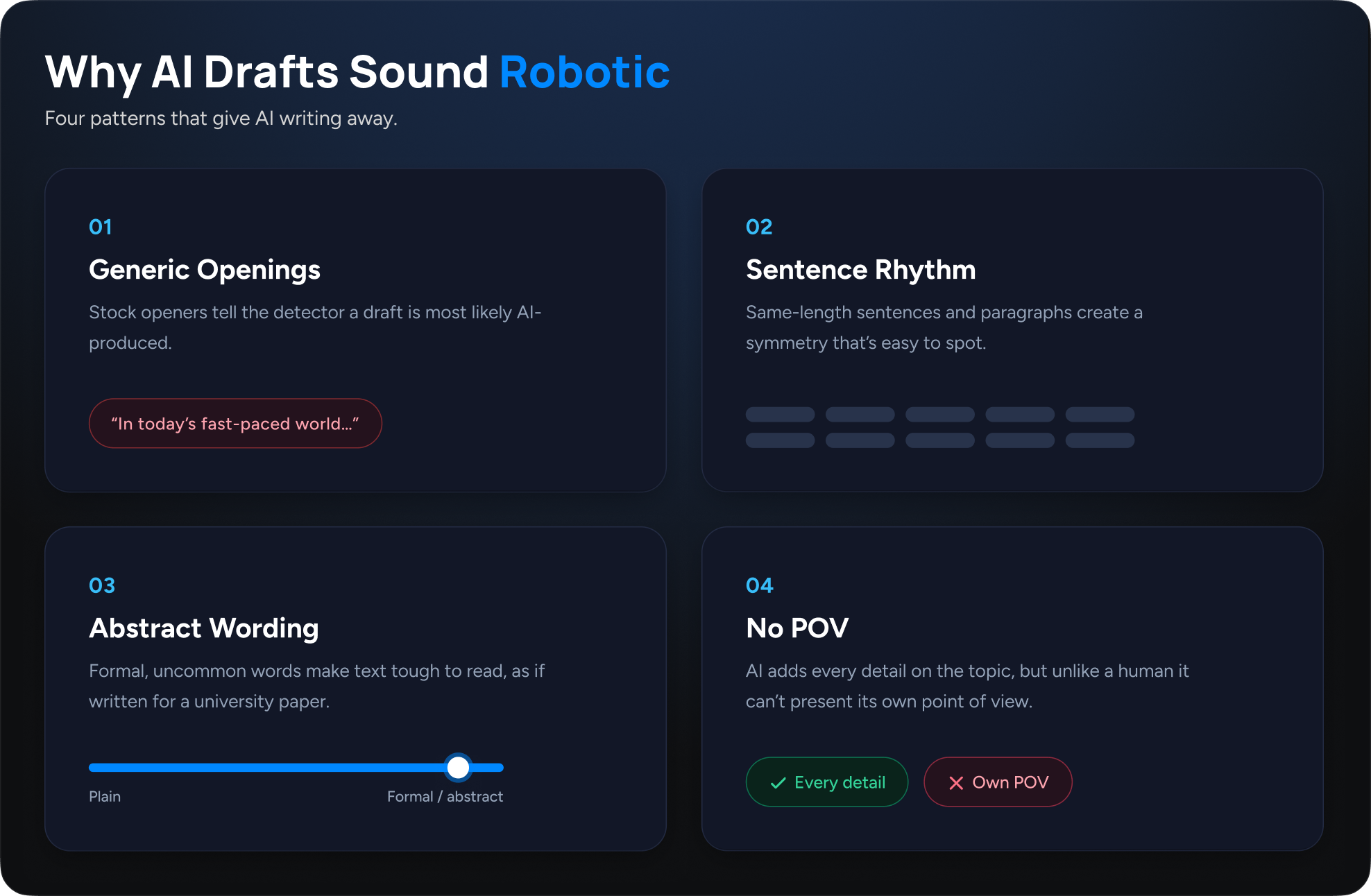
Before choosing an AI humanizer, you need to understand how an AI detector flags a text as AI. Here are some common reasons why AI drafts sound more robotic:
Generic Openings
Most AI tools will produce text with generic openings such as ‘in today’s fast-paced world’. This gives away the idea to the detector that the text is most likely AI-produced. You’ll most likely need an AI writing refinement tool or manual editing to remove this.
Sentence Rhythm
Most AI tools are designed to create sentence rhythm. This includes writing same-length sentences, same-length paragraphs, and so on. If you see a symmetry in the output, you’ll most likely find it to be AI-written.
Abstract Wording
AI tools often use abstract or uncommon words to make the tone more formal and somewhat tough to read. This happens when the tool doesn’t know the target audience and writes as if it’s writing a university paper.
No POV
You can expect the AI to add every detail related to the topic. However, unlike humans, it’s unable to present its POV.
Before and After: Robotic vs. Natural
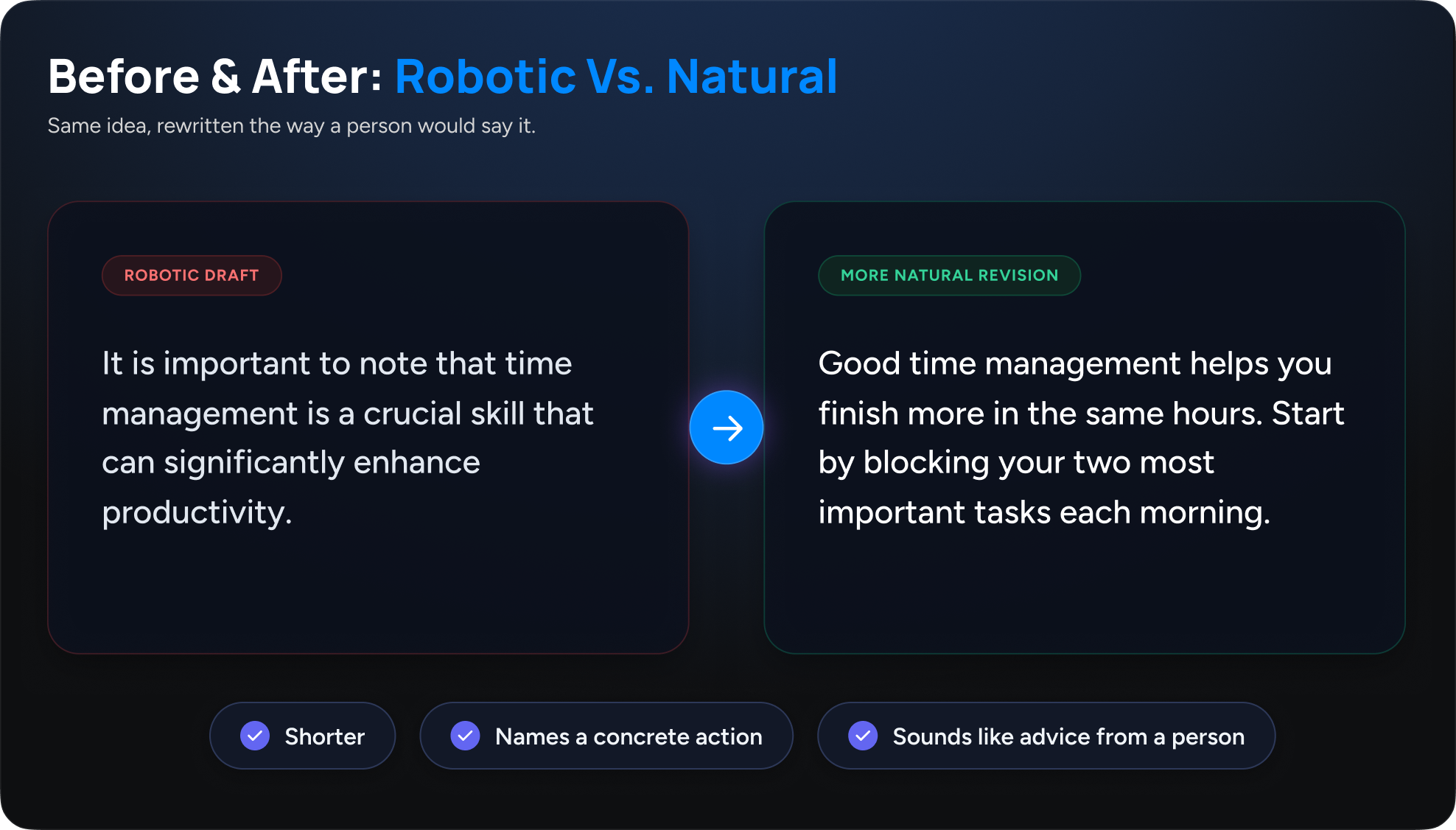
Based on the above, here’s a quick before and after:
The second version is shorter, names a concrete action, and sounds like advice from a person.
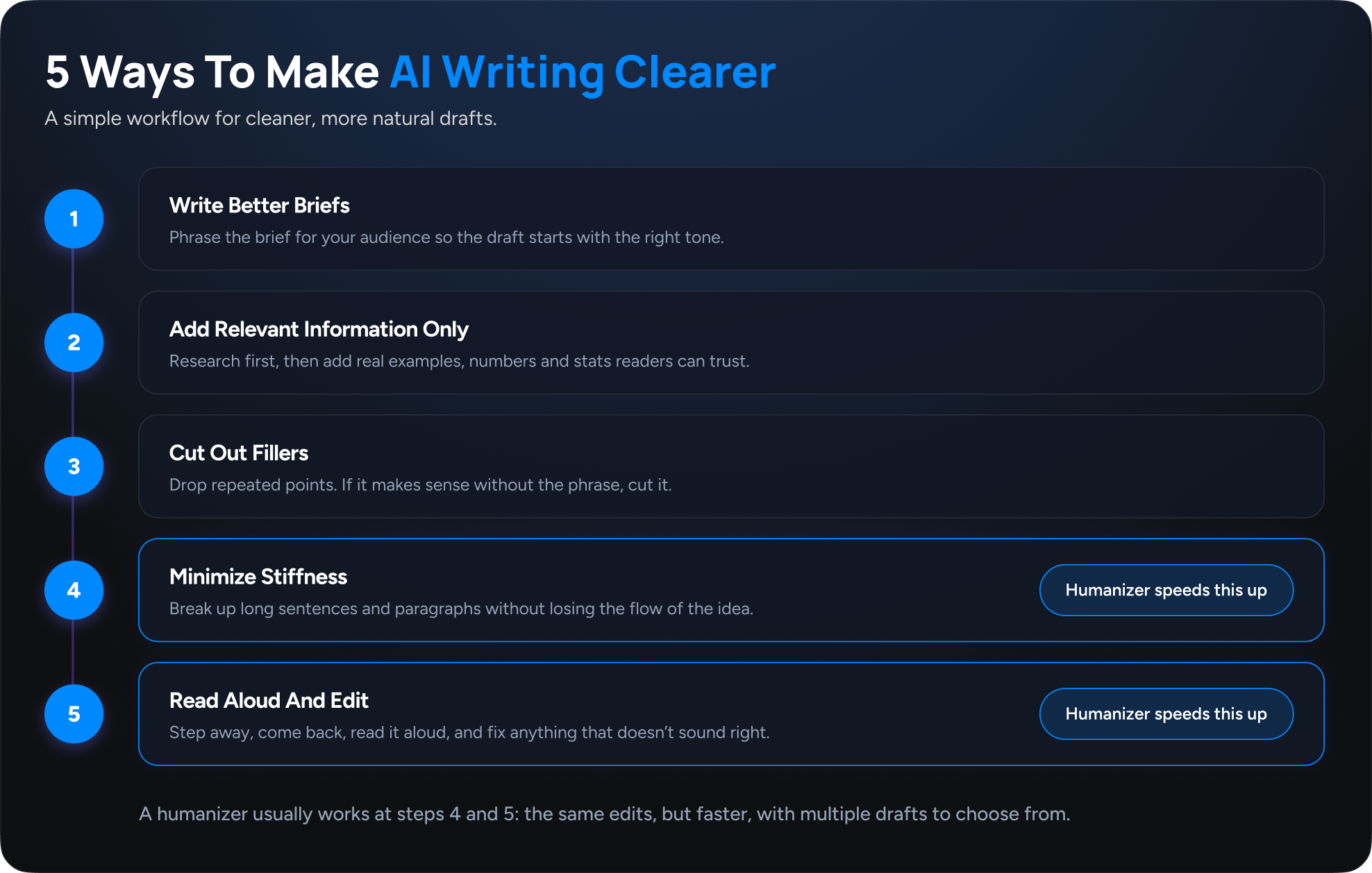
How to Make AI Writing Clearer and More Natural?
If you’re looking to edit the draft produced by your AI assistant, here are some techniques that you can use:
1. Write Better Briefs
The key to writing a better brief is to phrase it according to the audience. You can set the right tone and build a draft that sounds natural in the first place.
2. Add Relevant Information Only
Instead of adding random numbers, ensure that you’re researching the topic. You can use your AI assistant for Mac to research and gather references. Use this to add real examples, numbers, and stats. This makes your text authentic and credible for the readers. It also minimizes the chances of an AI detector flagging it.
3. Cut Out Fillers
When writing, ensure that you’re minimizing fillers as much as possible. Avoid repetitive points at all costs. In addition, ensure that you’re adding phrases that make the context visible for the readers. If it makes sense without the phrase, drop it.
4. Minimize Stiffness in the Text
If you’re a seasoned blogger, you know already that writing massive chunks of text gets flagged for AI easily. Therefore, break your sentences and paragraphs as much as possible. However, ensure that it doesn’t disrupt the flow of an idea within the paragraph.
5. Read Aloud and Edit
When you’re done creating your draft, give it a rest and step away to reset. Come back to it and read it aloud. Change the sentences where it doesn’t make sense when you do this.
If you’re wondering, a humanizer usually works at steps 4 and 5. It does the same thing but faster and produces multiple drafts that you can edit as needed.
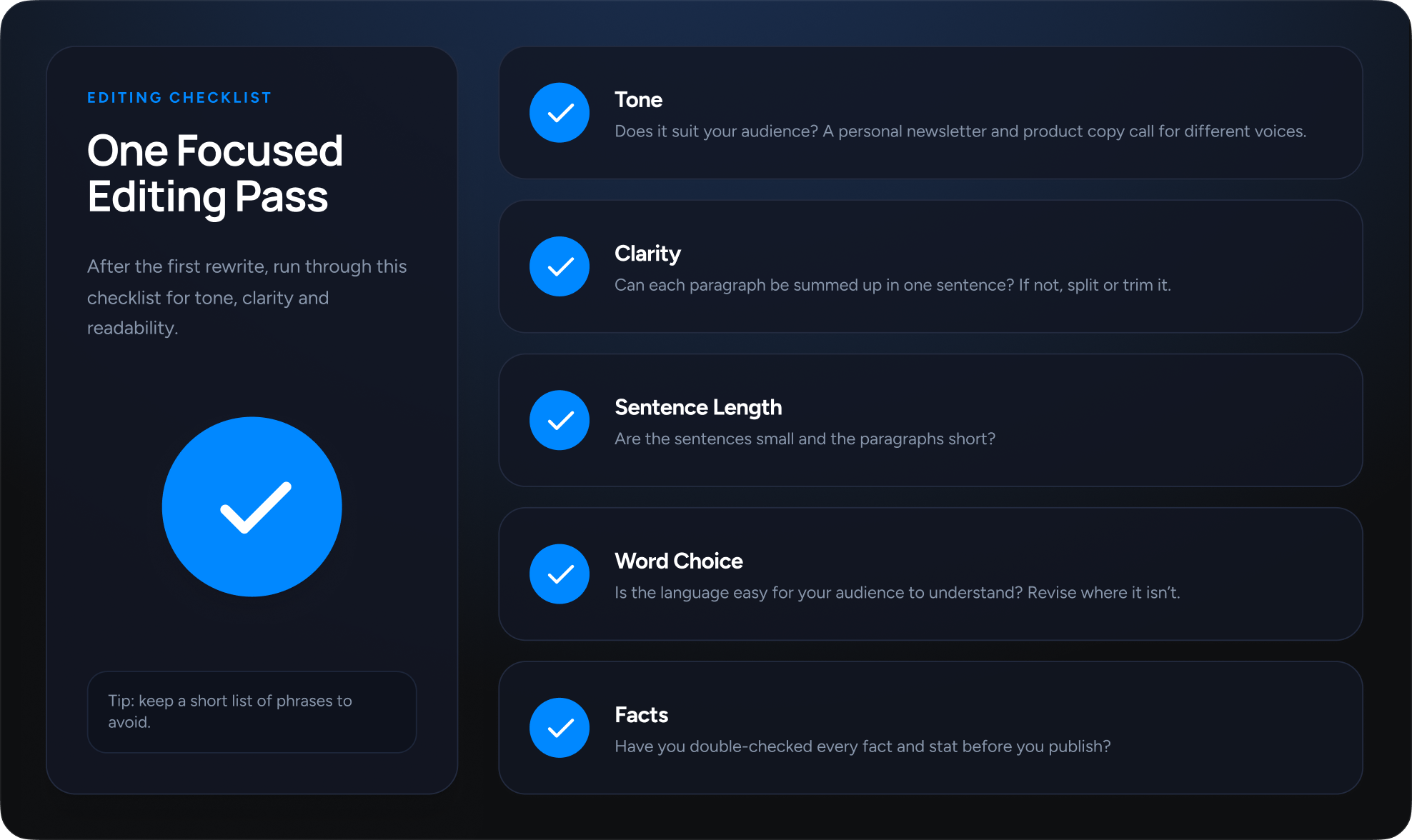
Editing for Tone, Clarity and Readability
After the first rewrite, do one focused editing pass. Use this checklist:
- Tone: does the tone of the written text satisfy the audience? Do you see the difference between a personal newsletter and a product copy? Revise if the answer is negative.
- Clarity: can each paragraph be summarized in one sentence? If not, split or trim it.
- Sentence length: does the text have small sentences and short paragraphs?
- Word choice: does the text use easy-to-understand language? Revise based on the audience to help them understand your text effectively.
- Facts: does the text include facts and stats, and if so, have you double-checked them? Ensure you verify stats before pushing to publishing.
Another effective way of writing clearly is to keep a short list of phrases to avoid. Ensure you avoid these sentences and use direct conversational language to make the text readable.
Using GemX to Refine AI-Generated Text
If you’re looking for an AI text rewriter app for Mac, then GemX is the one to start with. It’s a general productivity app for Mac that operates as your personal assistant. It has a dedicated humanizer, which refines your added draft according to your target goal and audience.
All you have to do is:
- Simply paste the text that you want to edit. Adding smaller chunks can help you see the changes made, making tracking easy.
- Add specific instructions to operate the humanizer effectively. Use plain, short words to address what you need. Verify before publishing.
- If you think that output doesn’t match the tone, you can reiterate. Ask the humanizer to follow specific instructions to ensure the result matches your expectations.
One of the best things about GemX is that it’s free to download and supports macOS 14 and later versions. You also get access to Gemini models that you can use for creating social media posts, writing short-form copy, creating chats, and other textual tasks.
Closing Thoughts
As with any AI tool, review the output before you publish it. GemX can improve clarity and tone, but it cannot confirm that your claims are correct, and it does not guarantee that text will pass or fail any AI detector. Ensure you pick the right AI humanizer for Mac based on our guide above to make your texts sound less robotic and more human.