
Productivity
Gemini AI for Mac:
How to Use AI Tools on Your Mac
Explore ways to use Gemini on your Mac, the features to look for, and practical habits for writing, research, coding, and creative work.

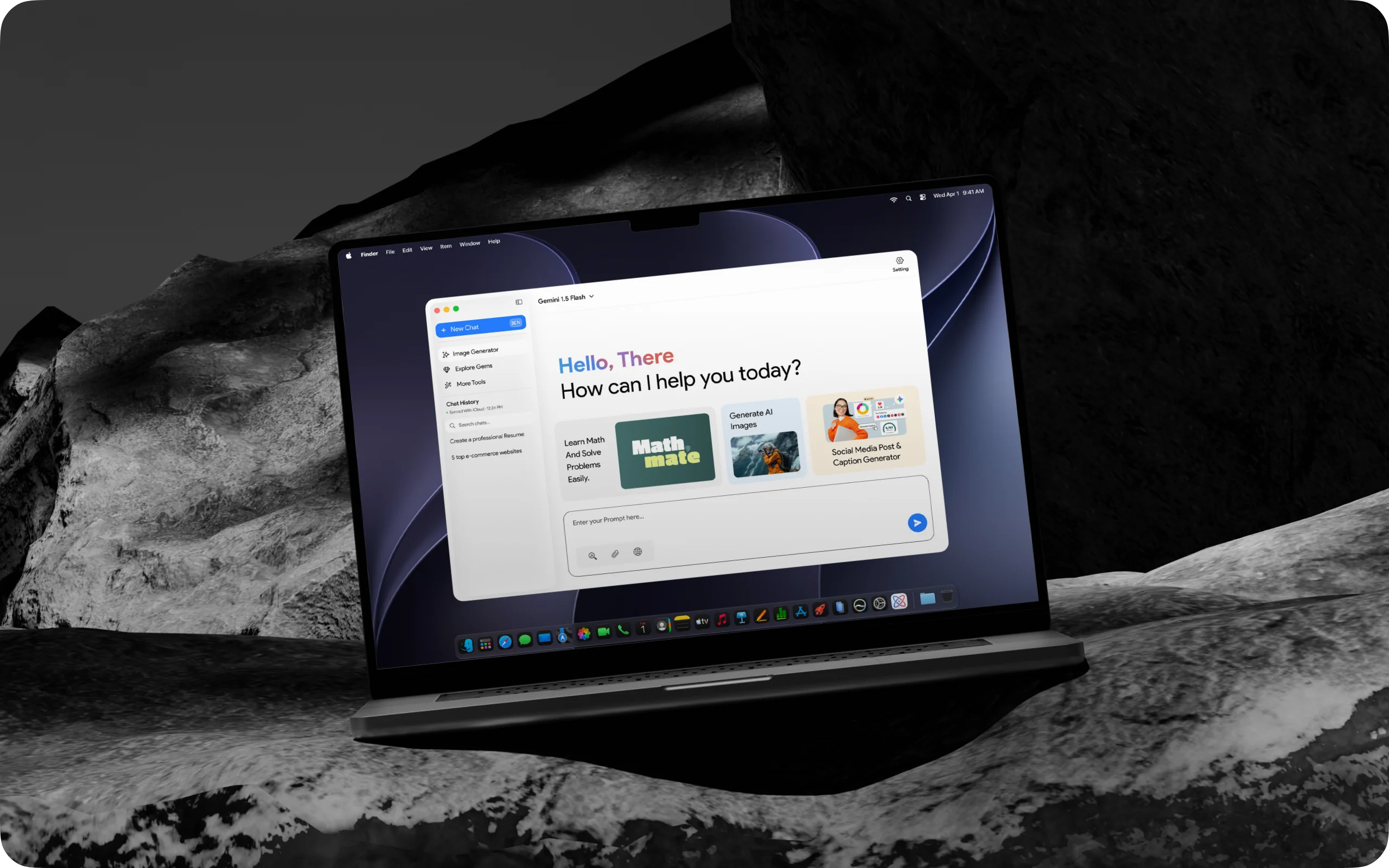
Previously, Gemini AI for Mac was only a tab on the browser. Now, it’s a native app for macOS that brings real options with intuitive features. If you’re considering Gemini AI for Mac, then this guide will explain how to use it to get the maximum output in your Mac workflow. So, let’s get started:
What Is Gemini AI?
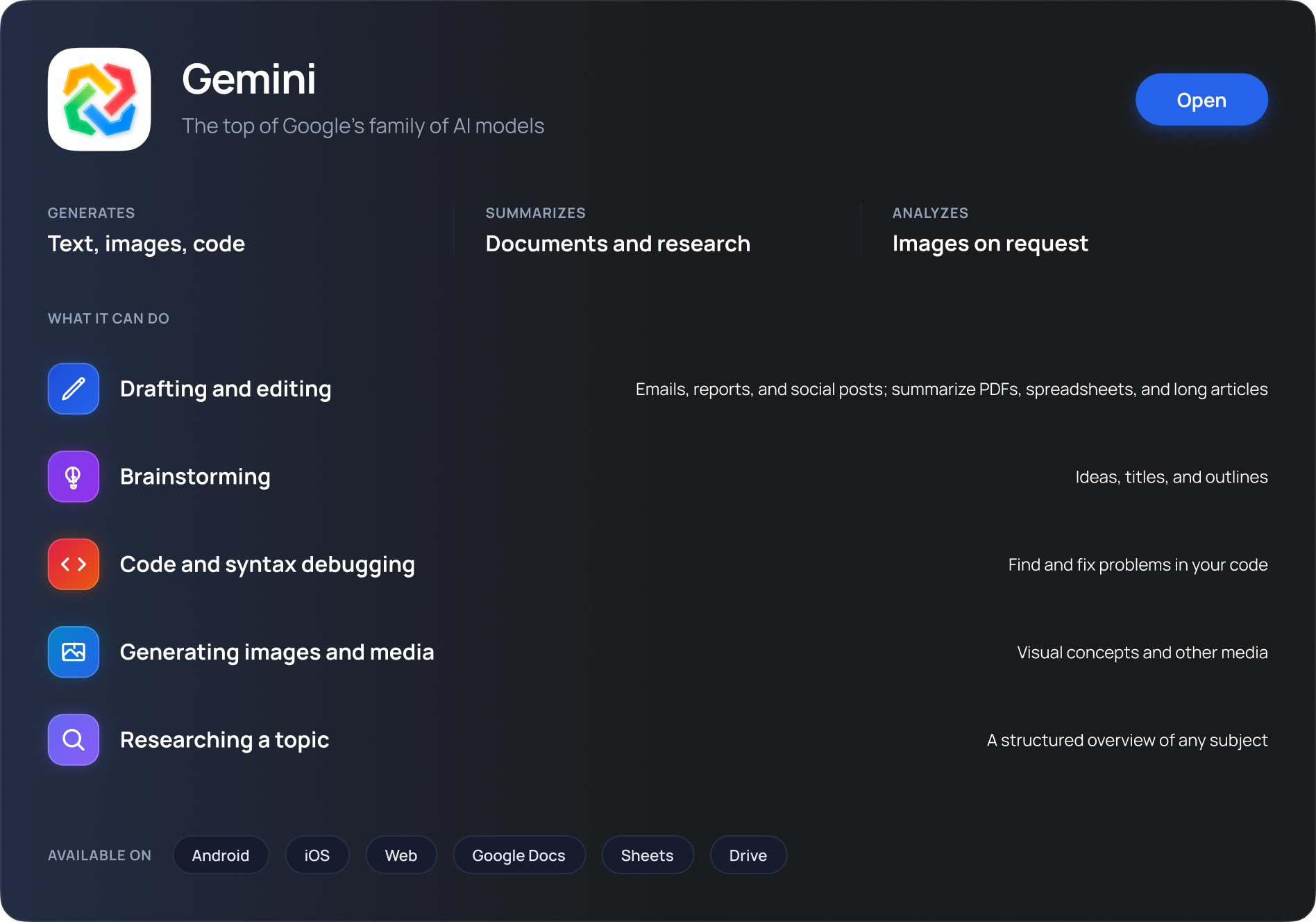
Gemini sits at the top of Google’s family of AI models. It’s trained to understand given text and generate output including text, images, code, and much more. It’s able to summarize documents, generate research, and analyze images as requested.
Gemini is also available on a wide range of platforms including Android, iOS, web, Google Docs, Sheets, and Drive. Gemini brings a wide range of work options, including but not limited to:
- Drafting and editing emails, reports, and social posts; summarizing PDFs, spreadsheets, and long articles
- Brainstorm ideas, titles, and outlines
- Code and syntax debugging
- Generate images and other media
- Research a topic and get a structured overview
How Can You Use Gemini AI on Mac?
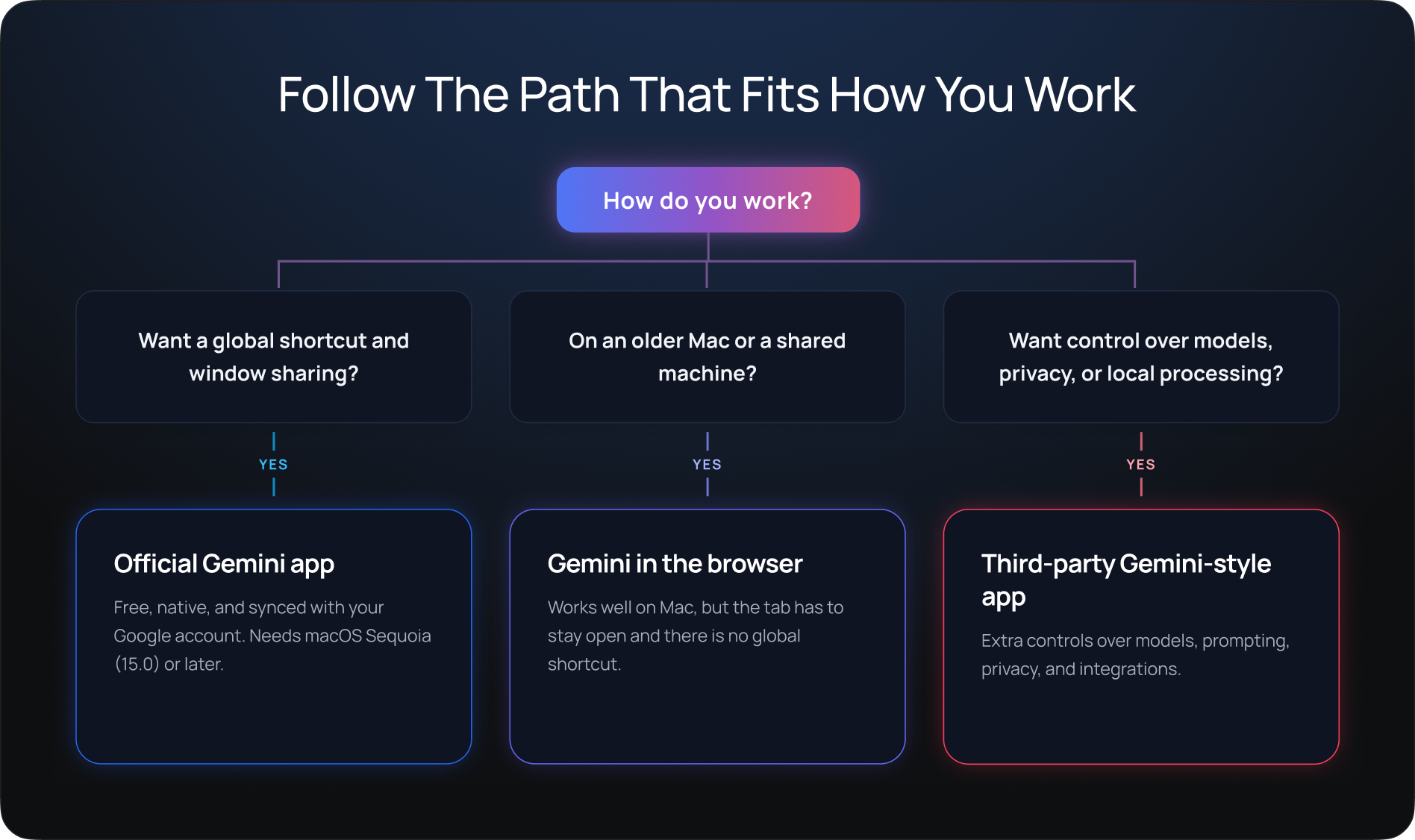
There are three primary methods of using Gemini on your Mac. The best one depends on how you work. Let’s take a look:
1. The Official Gemini App for Mac
The native Google Gemini for Mac was launched earlier this year in April. It’s free to use and available in several languages. It requires macOS Sequoia (15.0) or later versions. Older models of Intel Macs won’t be able to run it. In addition, it has the following features:
- Global shortcut: Press Option + Space from anywhere to bring up a compact "Ask Gemini" bar without switching tabs.
- Window sharing: Share the window you are looking at so Gemini can answer based on what is on screen, such as a complex chart, a block of code, or a spreadsheet.
- File and app connections: Upload local files, or pull in content from Google Drive, Google Photos, and NotebookLM.
- Creative and research tools: Image, video, and music creation, plus Canvas, Deep Research, and Guided Learning.
- Model choices: Switch between faster and more capable Gemini models depending on the task.
- Text refinement and dictation: Highlight text in another app and tell Gemini how to change it, or speak to a window to dictate.
One of the best things about this version is that it syncs perfectly with your Google account. So, it shares the history between your Mac, phone, and web, and is easily accessible. You can grant it accessibility permission from system settings for improved performance.
2. Gemini in the Browser
Just like the native version, the web version of Gemini works well with Mac. It’s even usable on shared machines and older Mac versions. However, the only downside to using it is that you’d have to keep the browser tab open all the time.
You’d also need to visit the tab for any functionality since there’s no global shortcut for it. To use it for various tasks, you’d have to copy and paste files or context from other tabs into it.
3. Third-Party Gemini-style Mac Apps
If you’re looking for something native, you can choose from online third-party apps that bring a similar experience. These are also equipped with additional controls over models, prompting, privacy, and integrations. You can get one for local processing or for connecting an AI app with your local scripts.
What to Look for in a Gemini-Powered Mac App
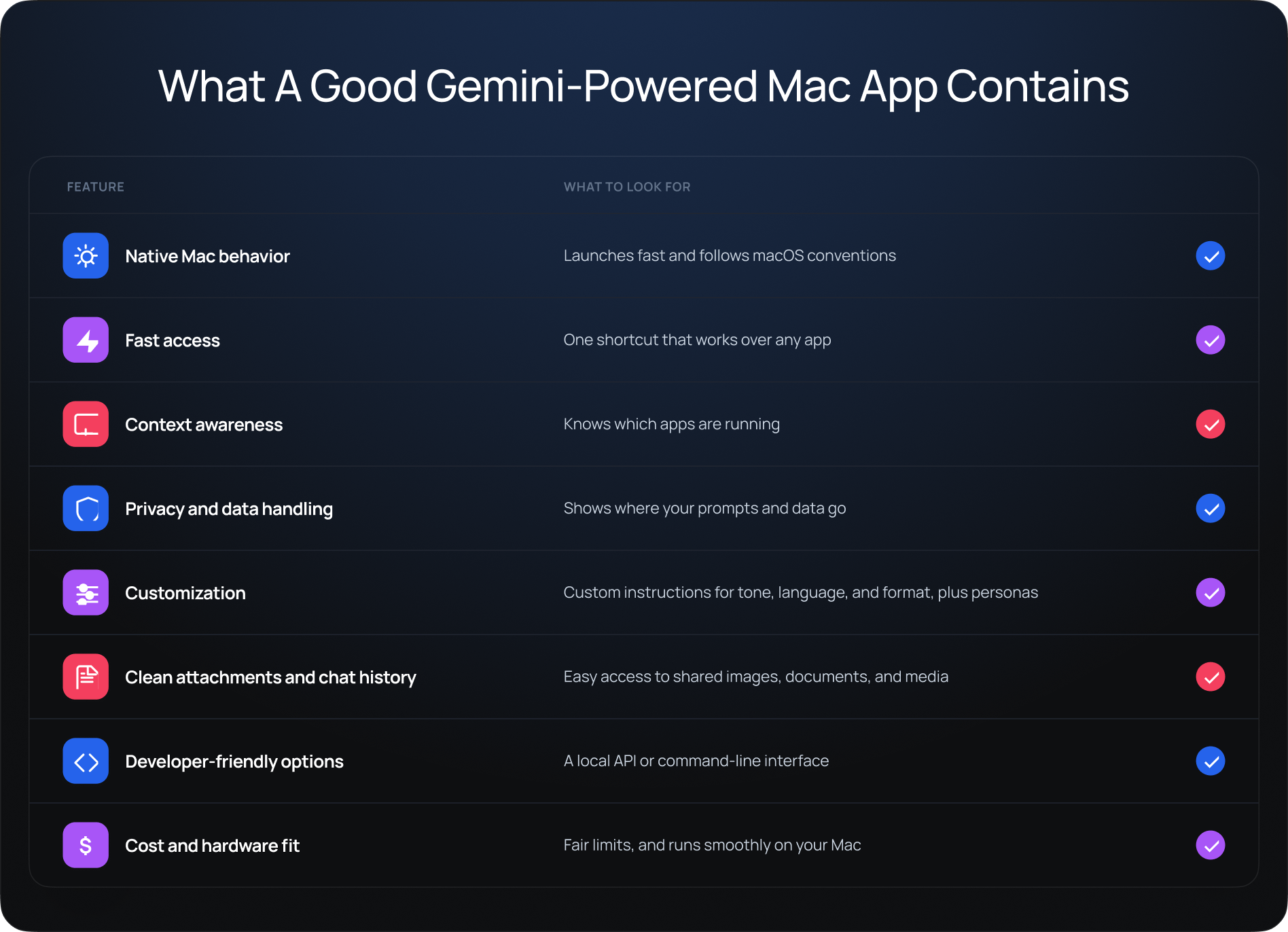
If you’re choosing a Gemini-powered Mac app, you need to evaluate the choices against the following criteria:
Native Mac Behavior
The app should launch fast while adjusting to the current system’s theme and settings. It should provide an interactive interface and follow current macOS conventions.
Fast Access
Instead of browsing through different ways, it should have a single keyboard shortcut that can help you find and launch it whenever and with any app.
Context Awareness
As highlighted earlier, the app should launch with any app, making it context aware. It should know what apps are currently running and should be able to integrate within the apps whenever requested. This allows turning generic answers into app-specified ones.
Privacy And Data Handling
The app should identify where your prompts and data are going. Most of the apps use online cloud servers to store and access information in real time, while some use the device’s space. The app you’re considering should highlight where the information is stored.
Customization
It should allow easy customization from the user’s perspective as well as come with custom instructions. These should allow you to change the tone, language, and format in one go rather than repeating the process for different chats. Moreover, it should also adjust personas as requested.
Clean Attachments and Chat History
The app should provide easy chat management, allowing access to images, documents, and other media shared in the chats through chat history.
Developer-Friendly Options
A developer-friendly app can be highly useful for someone who’s interacting with coding and automation daily. Such an app has a local API or command-line interface, allowing you to plug AI into desired tools whenever required.
Cost And Hardware Fit
Ensure the app you’re considering is budget-friendly for its tier and has ample usage limits. Check for system compatibility, particularly memory requirements, to pick the one that runs smoothly on your Mac.
Gemini and AI Productivity
AI tools only pay off when they save time in your actual workflow. Here is where a desktop Gemini setup tends to help most.
Writing and Editing
You can use the Gemini assistant for Mac to draft the outline, write an intro, or fix the existing text according to the required tone, meeting the target audience’s requirements
Research and Learning
Instead of reading through plain text by yourself, you can engage the assistant to summarize the document and provide key points. You can even engage in a conversation for better understanding of the project. Features such as Deep Research and Guided Learning are built specifically for such purposes.
Spreadsheets and Data
Engage the Gemini assistant with spreadsheet data for organizing and sorting. Get the right formula for representing the data as well as create graphs, summaries, or anything else without leaving the document.
Coding
From writing the code to explaining and bug hunting, engage the AI assistant as a code editor within the same window without having to bounce between different tabs.
Creative Work
Generate ideas or visual concepts with simple prompting. Boost your creative capacity and enrich the creative output with the Gemini assistant, removing creative block or friction.
A Few Habits Make AI More Useful
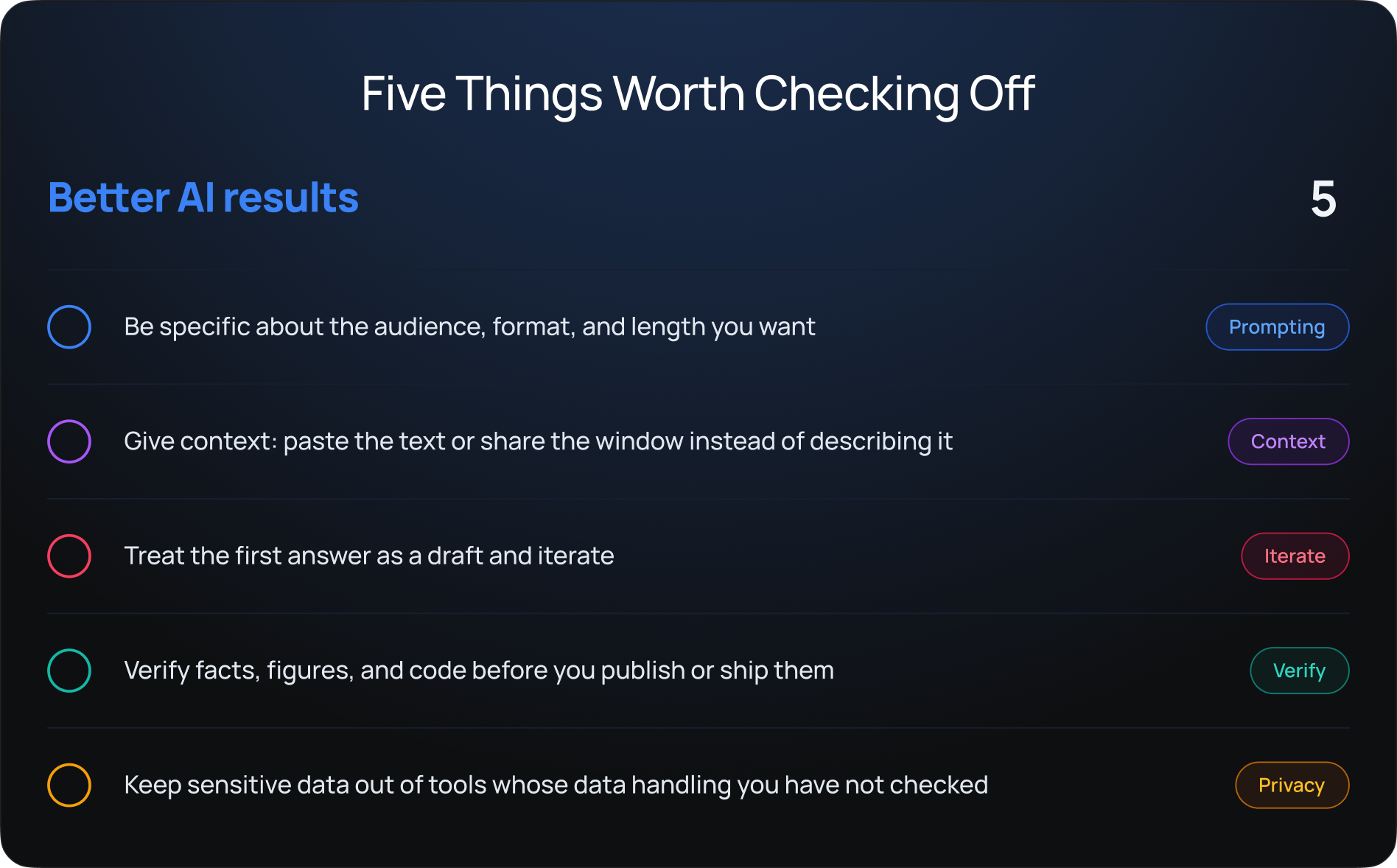
- Be specific about the audience, format, and length you want.
- Give context, such as pasting the relevant text or sharing the window, instead of describing it.
- Treat the first answer as a draft and iterate.
- Verify facts, figures, and code before you publish or ship them. AI assistants can be confidently wrong.
- Keep sensitive data out of tools whose data handling you have not checked.
How GemX Uses Gemini Capabilities
GemX is an independent Mac app that takes the Gemini-style chat experience and builds it around the way Mac users like to work. Here is what stands out:
Gemini-Style Chat Interface
The app offers an interactive interface for users, similar to the Gemini app. The interface hosts a sidebar, a composer, and clear cards for attachments, minimizing the noise for a modern AI chatbot look.
Light, Dark, and System themes
GemX follows your macOS Appearance setting live, so the whole app switches the moment you change it in Control Center or System Settings, with no restart.
Custom Instructions
With a free-text field, you can easily add custom instructions that apply to every chat. Adding custom instructions means ease of use and less time consumption on unnecessary changes required for every document.
Personas and Response Controls
You can shape how the model responds, including its personality and sampling settings, instead of accepting one-size-fits-all behavior.
Final Thoughts
Gemini AI for Mac has gone from a browser tab to a first-class desktop experience in a short time. It brings native apps, global shortcuts, window sharing, and creative tools to Apple Silicon Macs, and independent apps like GemX add customization on top of the Gemini-style chat experience.